> ## Documentation Index
> Fetch the complete documentation index at: https://docs.wizlopay.com/llms.txt
> Use this file to discover all available pages before exploring further.
# CyberSource
> Connect to CyberSource to accept card payments and local payment methods.
Cybersource is a Visa solution that provides global card processing, risk management, and payment acceptance tools for enterprises and online businesses. The platform supports comprehensive payment processing with advanced features for merchants worldwide.
## Supported payment methods
| Method | Countries | Currencies | Notes |
| ---------------------------- | ------------------- | --------------------- | --------------------------------- |
| [Card](./cybersource-card) | `AT`, `AU`, 38 more | `AED`, `AFN`, 95 more | Card processing via Cybersource. |
| [iDEAL](./cybersource-ideal) | `NL` | `EUR` | Bank redirect in the Netherlands. |
| [KCP](./cybersource-kcp) | `KR` | `KRW` | Bank redirect in South Korea. |
## Setup
To sign-up for a Cybersource account, request a
[sandbox account](https://developer.cybersource.com/hello-world/sandbox.html),
this can take 1-2 days.
## Credentials
When setting up Cybersource in the dashboard, configure the
following credentials, which are obtained from Cybersource Business Center:
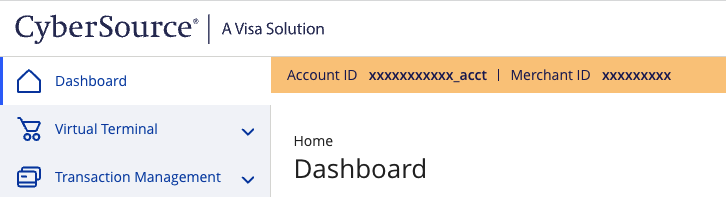
**Merchant ID:** this is the Cybersource assigned Merchant ID for the account. You can find it in the Cybersource Business Center.
 **Secret key:** create a REST API Shared Secret Key. This is also documented on the [Cybersource Knowledge Base](https://support.cybersource.com/knowledgebase/Knowledgearticle/?code=000002926).
1. Sign in to the Cybersource Business Center (Test or Production) where the key is used
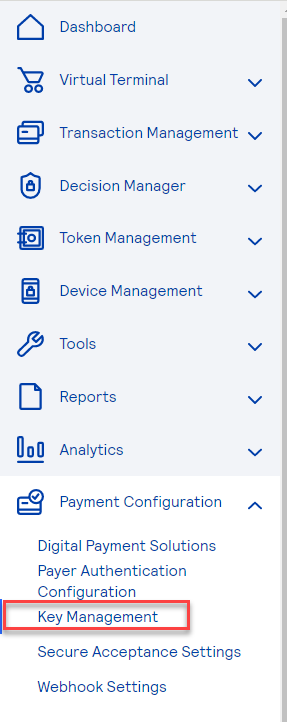
2. Select Payment Configuration > Key Management
**Secret key:** create a REST API Shared Secret Key. This is also documented on the [Cybersource Knowledge Base](https://support.cybersource.com/knowledgebase/Knowledgearticle/?code=000002926).
1. Sign in to the Cybersource Business Center (Test or Production) where the key is used
2. Select Payment Configuration > Key Management
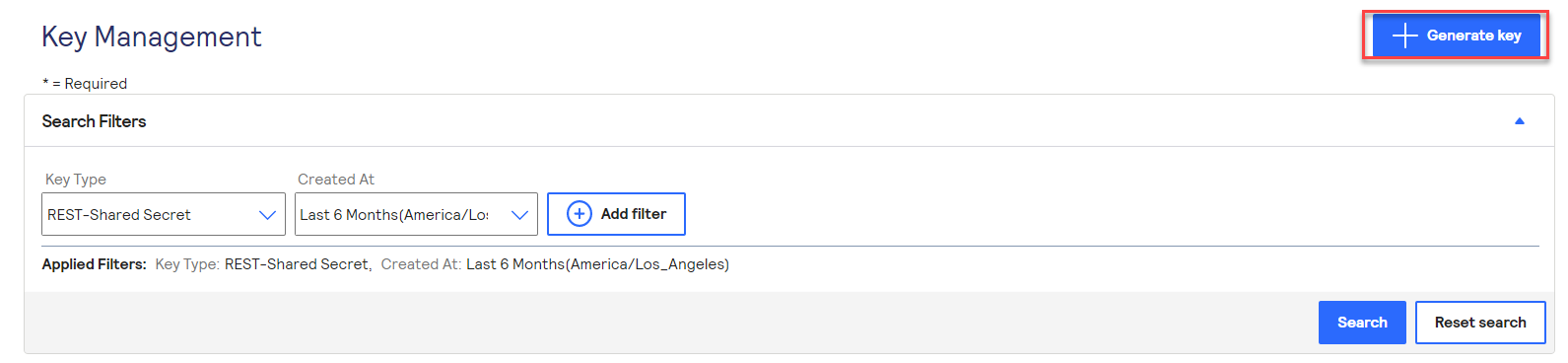
 3. Select Generate Key at the top right
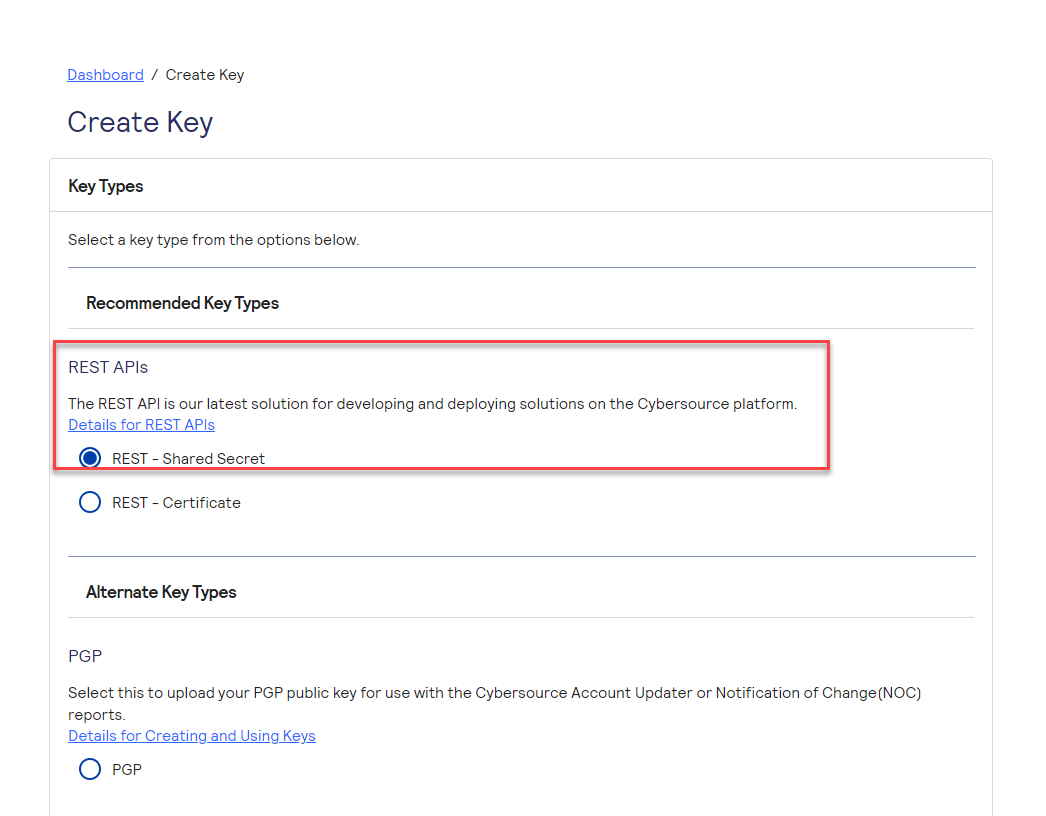
 4. From the list, make sure to check the radio button for REST APIs - REST - Shared Secret Key
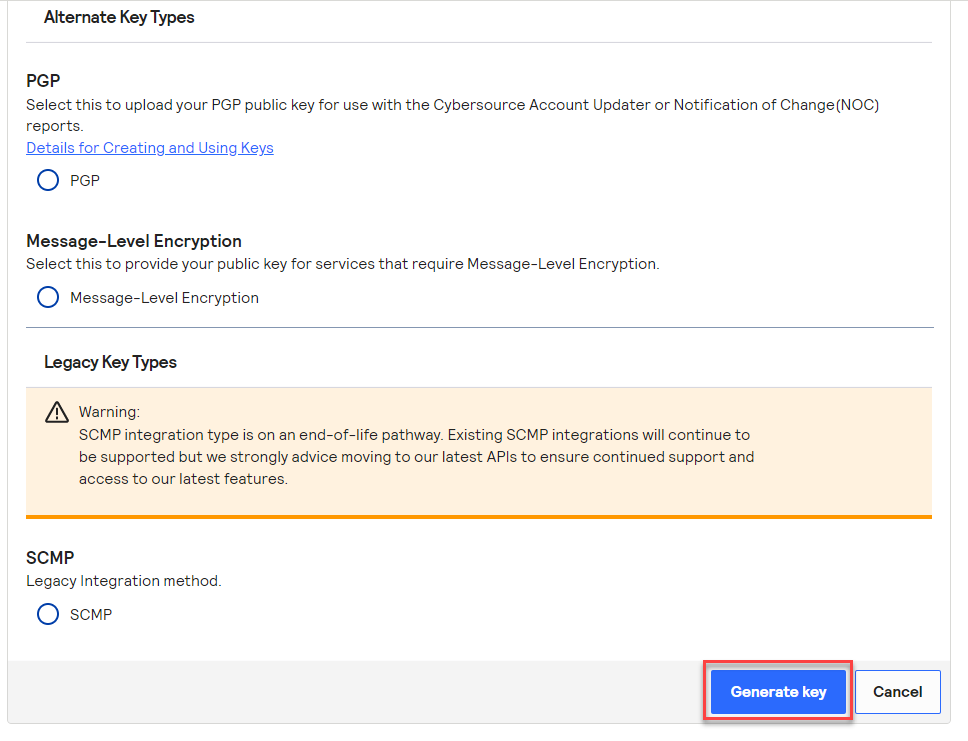
 5. Click Generate Key at the bottom
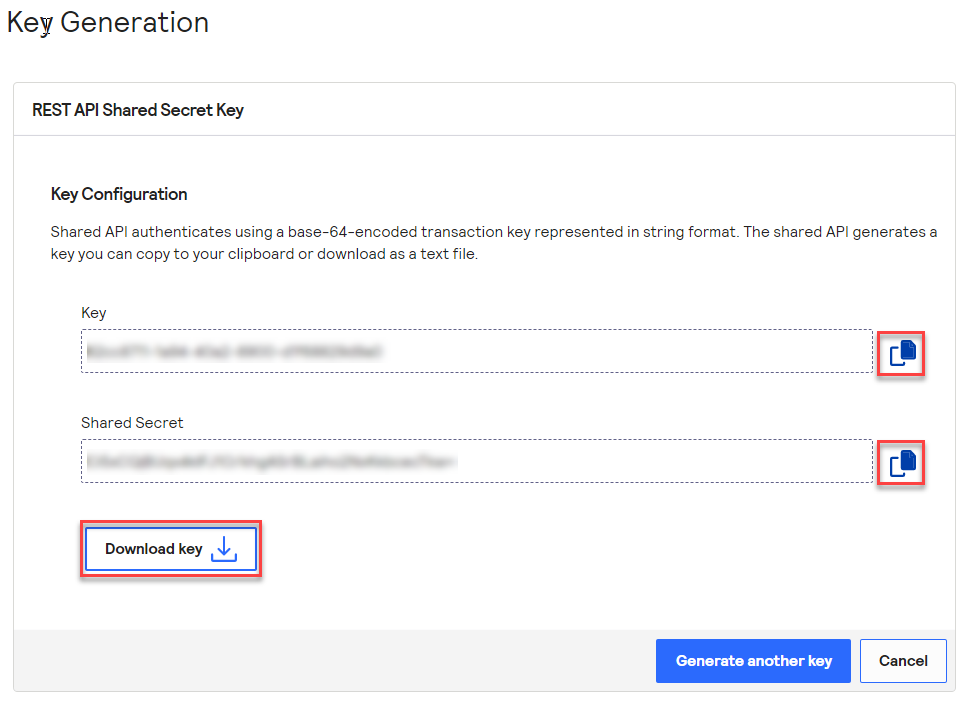
 6. Click on Download Key or copy the keys using the copy function next to Key and Shared Secret
 ### Key ID
After creating a Shared Secret Key (see preceding), obtain the `Key ID` by following these steps:
1. Go to Payment Configuration > Key Management
2. Find the key from the list
### Key ID
After creating a Shared Secret Key (see preceding), obtain the `Key ID` by following these steps:
1. Go to Payment Configuration > Key Management
2. Find the key from the list
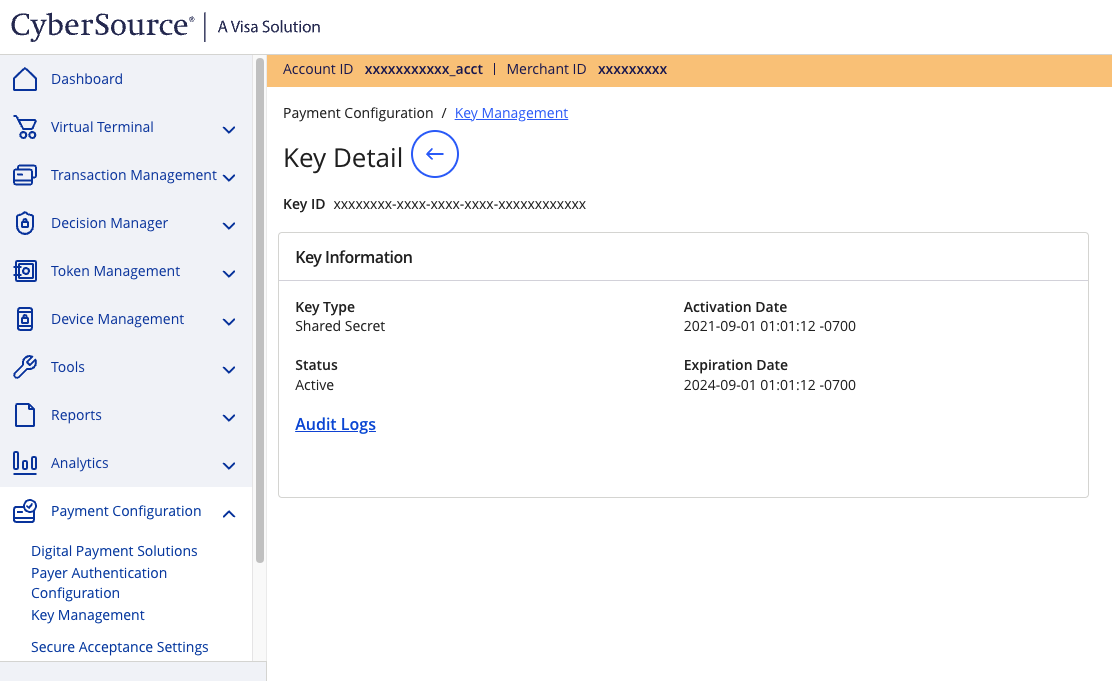
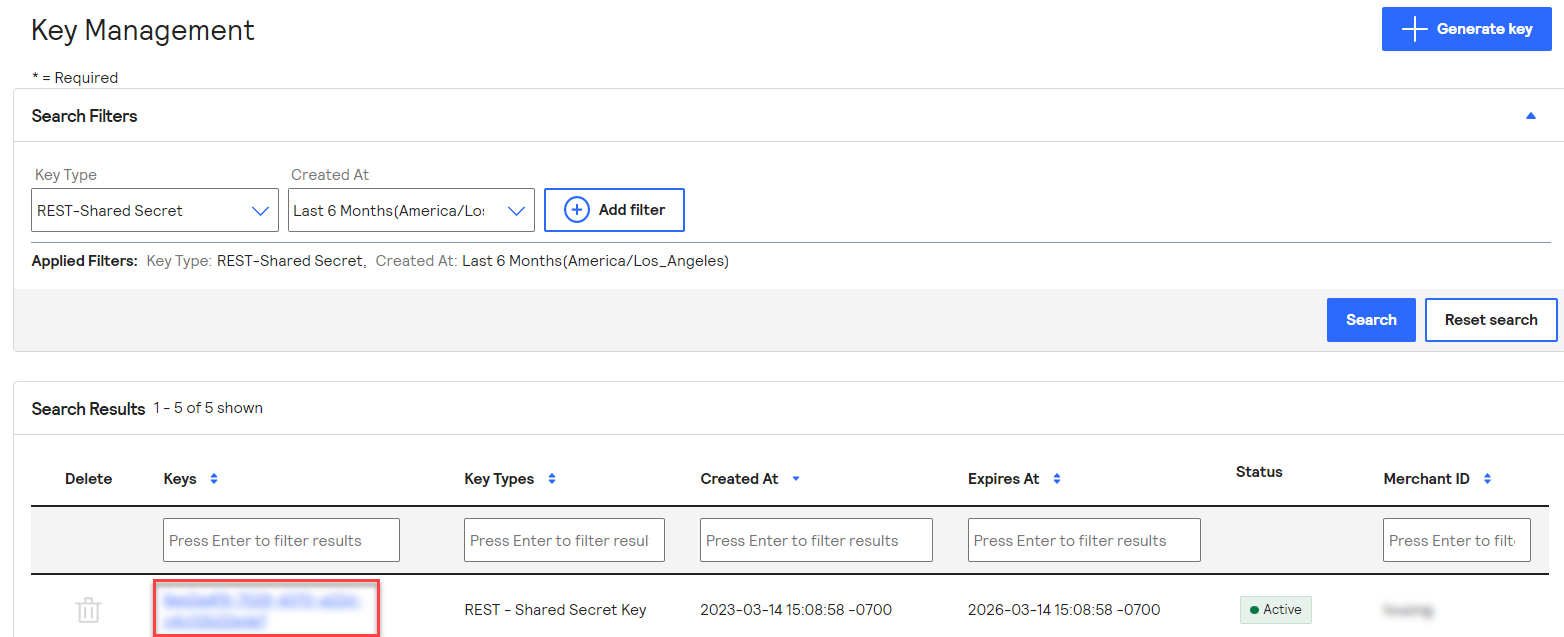 3. The `Key ID` is listed below the `Key Detail` title