

Configuration
Before enabling settlement reporting for an Adyen connector please follow the below steps. Some fields in the settlement report are not in the default Adyen settlement details report and need to be configured via the Adyen portal. The following fields need to be added:Booking date, Booking Date TimeZone and metadata. To add the columns to the Adyen report follow the documentation here.
Please follow the below column configuration.
It’s important to set up the columns in order and these are the minimum columns needed. If more columns are desired, these should be placed after the last column mentioned here.
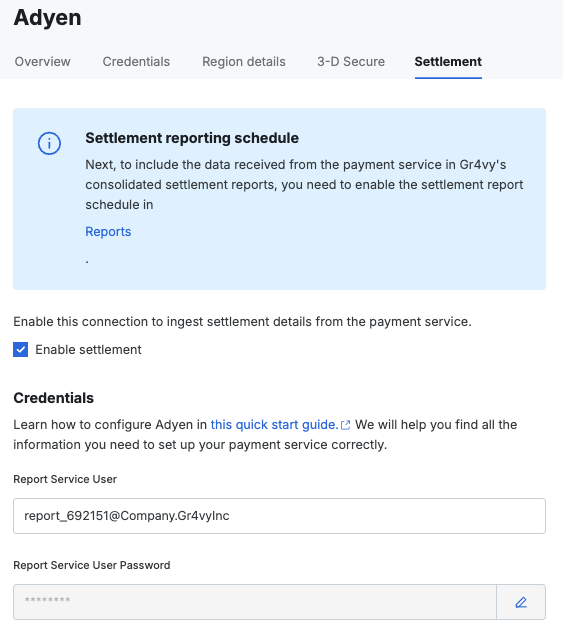
report_123456@Company.Gr4vyInc.
Please fill out the whole name, not just the report_123456 part, and provide the basic auth password in the dashboard.
It is important to use the Basic Auth key pair when configuring the report user in the dashboard, and not the API key. This needs to be filled out in the settlement tab in the connector configuration page.
Enabling the report available webhook
Report ingestion is triggered by Adyen’sREPORT_AVAILABLE webhook: each time Adyen creates a report, it notifies Gr4vy, which then fetches and ingests the corresponding settlement details report. Enable this webhook in the Adyen Customer Area:
- In the Gr4vy dashboard, go to Connections, select your Adyen connection, open the Synchronization tab and copy the webhook URL. This is the same endpoint used for your Adyen transaction webhooks.
- In the Adyen Customer Area, go to Developers -> Webhooks.
- Select Create new webhook, or edit the existing endpoint that already points to Gr4vy.
- In the Server configuration -> URL field, paste the Gr4vy webhook URL. Ensure that the method selected is JSON.
- Under Events, toggle the REPORT_AVAILABLE event on.
- Select Save configuration to save your changes.
Fields mapping
Below is the mapping of Adyen’s settlement report to the consolidated settlement report. This data is pulled from the Adyensettlement_detail_report report.
Notes
payment_service_transaction_created_atandposted_athave been converted to UTC usingTime ZoneandBooking Date Time Zonerespectively, which are time zone abbreviations. As these time zone abbreviations can be ambiguous, the applied UTC offset to these timestamp columns may not be accurate. Please refer to thedescriptionfor the raw values used.- Non-customer facing journal types may have columns defaulting to
0or empty strings.
Journal type mapping
Fields marked as not being an Adyen field are populated from internal
data and not from the imported payment service report.